User manual
Less Gain Stage
Gain, polarity and stereo trim with a measured readout for setting levels.
macOS: AU and VST3, Apple silicon · Windows: VST3, 64 bit
mixlessaudio.com ·
[email protected]Overview
Less Gain Stage measures your level, you type the target, and it shows the difference to apply. Next to gain and polarity sits a stereo strip: full control from the untouched stereo image to mono, and a balance trim drawn on the same scale it is measured.
Installation
Run the installer for your platform. On macOS the AU
and VST3 versions install for all users; on Windows the VST3 installs
under Common Files. Factory presets install into your user preset
folder and are never overwritten: presets you save land in the same
folder and stay yours.
| macOS presets |
~/Library/Application Support/MixLess/Presets/Less Gain Stage |
| Windows presets |
%APPDATA%\MixLess\Presets\Less Gain Stage |
The interface
Press I in the plugin to
toggle the same control descriptions as cursor tooltips.
Stereo, then mono
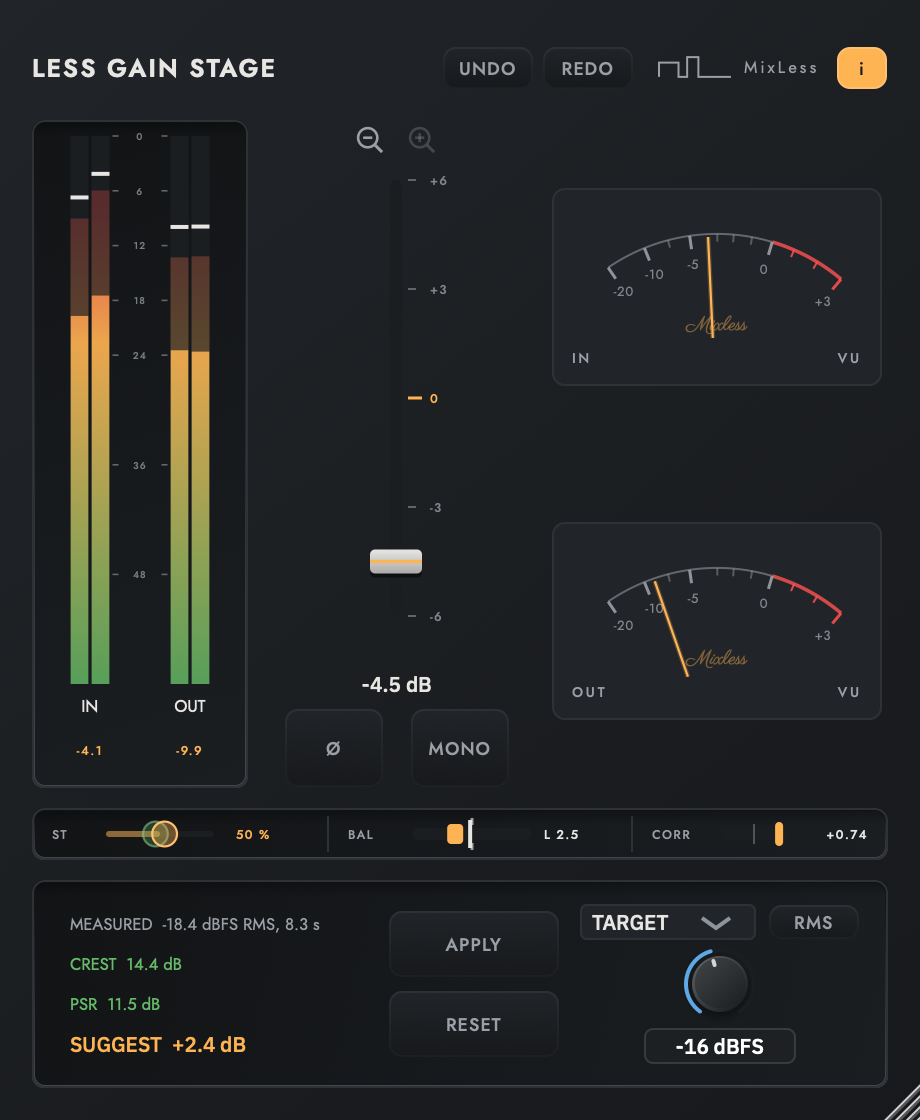
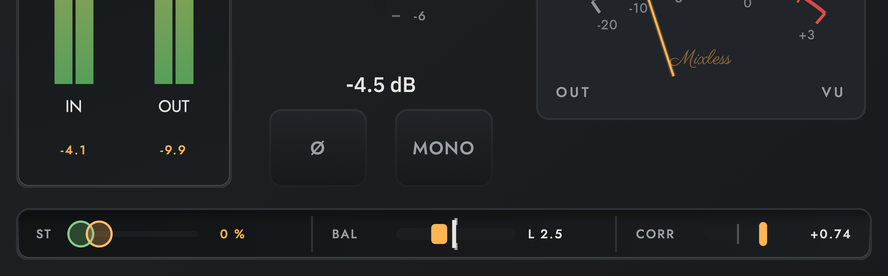
Two states of the same editor with the same material running: ST at 0 with the image untouched, and ST at 100 with MONO lit. Watch the ST handle: two circles, then one.
The stereo strip
The strip under the meters holds a control, a correction and a measurement: ST, BAL and CORR. They share the strip and stay separate, so what you set and what the source is never blur into one reading.
Full control between stereo and mono: ST reaches every point from the untouched image at 0 to mono at 100, where a mono switch offers only the two ends. Its handle is drawn as two circles, one per channel, apart at 0 and a single circle at 100. The overlap is the fold amount, drawn; CORR is the source, measured.
Balance and correlation are read after the BAL trim and before the fold. Read before the trim, turning BAL would not move the reading; read after the fold, both would always look perfect.
| ST | Stereo fold from 0 to 100 percent, default 0. At 100 both channels carry the same signal, the average of left and right. Changes ramp over 20 ms, so dragging does not click. |
| MONO | The shortcut to ST 100. It lights whenever the fold is full, however it got there. Pressing it keeps your ST value underneath; pressing a lit MONO leaves mono, back to your ST value, or to 0 when that value is itself 100. Grabbing the ST slider releases MONO. |
| BAL | Balance trim, plus or minus 12 dB, default 0. Half goes to each side, so the centre level holds. Changes ramp over 20 ms. The handle and the measured line share one scale. |
| CORR | Input correlation from minus one to plus one. Near plus one a fold costs little; toward minus one content cancels in mono. Polarity does not move it. |
| Signal order | Input meters, BAL trim, balance and correlation measurement, polarity and gain, ST fold, output meters. |
Workflows
Stage a channel
Insert Less Gain Stage first in the chain. Type your target level and adjust Gain until the distance readout reaches zero; every plugin after it now starts from the same level. The two magnifiers above the fader narrow its window to 6, 12 or 24 dB either side of zero for fine moves; the value never moves when the window changes.
Check a mix in mono
Read CORR before folding: near +1 the channels share most of their content, toward minus one they cancel. Drag ST slowly from 0 and watch the two circles of its handle slide together; where the width goes is where the mix leans on stereo. At 100 the circles are one and MONO lights. Press MONO to leave mono: you return to your own ST value, or to 0 if that value was 100.
Centre a source that leans
When the bright line on BAL sits off the centre notch, one side is louder. Drag the handle toward the quiet side until the line meets the notch. The trim is split, half up on one side and half down on the other, so the overall level stays where it was. Folding would only hide the imbalance; BAL removes it.
Match another channel
Open the TARGET selector and pick another Gain Stage in the session instead of a number. Only instances in the same host appear. The unit locks to LUFS, and APPLY sets the gain that brings this channel to the other one. If the other instance disappears, the readout says so and APPLY switches off.
Check polarity
On multi-mic sources, flip polarity (Ø) and listen: if the body comes back, the phase was the problem. CORR does not move when you flip it, because polarity turns both channels over together.
Tips
The default state is numerically transparent, tested at a tolerance of 0.0000001. ST and BAL start at 0, so inserting the plugin changes nothing.
Double click the fader to return to 0 dB. The magnifiers change the view, never the value; a value outside the window is marked with an arrow at the edge.
Click a meter bar to release its hold line and clear clipping on every channel.
Folding does not remove an imbalance, it hides it. The BAL reading stays where it is while MONO is on, so you can still see it.
Specifications
| Formats | AU, VST3 |
| Latency | 0 samples |
| Default state | numerically transparent, tested at 1e-7 |
Support
Questions and problems: [email protected].
Legal notices, the privacy notice and third-party licences:
mixlessaudio.com.